Most of the time, the PDF documents we receive are far larger than we actually need. You might receive a 100-page manual when you only need a specific troubleshooting chapter, or a massive 50-page financial report when you only want to forward the executive summary.
Printing these files wastes paper. Emailing them wastes bandwidth. Sharing a full document when only a fraction is relevant is impractical and sometimes a security concern.
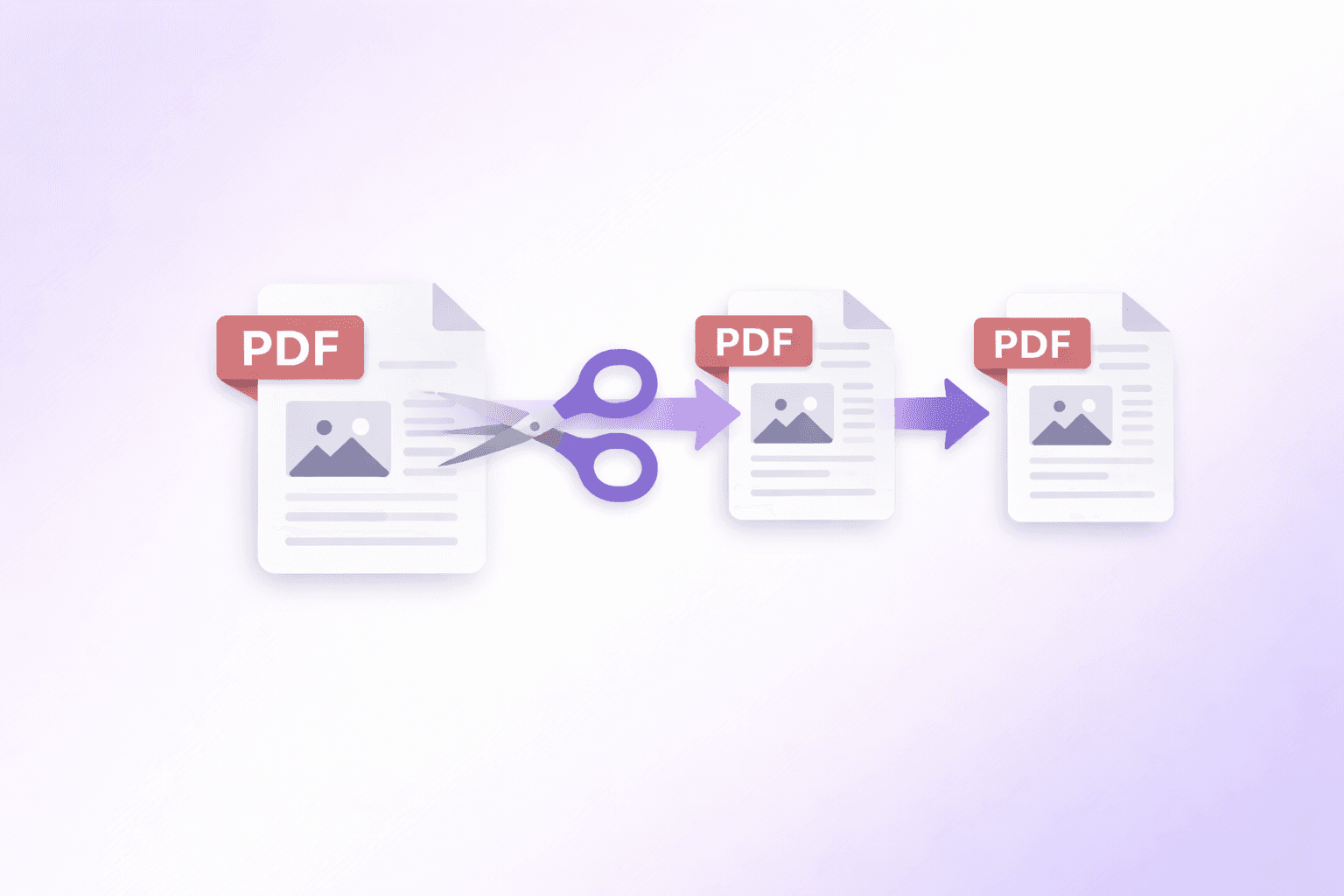
Extracting and sharing only the relevant pages is the professional standard for document distribution. Here is how you can easily split and separate specific pages from any PDF, directly in your browser, with no uploads and no installs.
The Problem with Desktop Software
To split a PDF or extract a subset of pages historically required bulky, premium software like Adobe Acrobat Pro. While some free alternatives exist, they usually involve clunky desktop applications bundled with adware, or questionable online converters that force you to upload your sensitive contracts to a remote cloud server.
Client-side extraction natively inside the browser gives you the power of Adobe without the required installation, and the convenience of an online tool without the security risks of file uploading.
When Should You Split a PDF?
Knowing when to split is just as important as knowing how. Here are the most common real-world situations:
Sharing a single chapter or section: Technical manuals, legal agreements, and academic papers often contain sections that need to be shared selectively. Extracting just the relevant chapter is cleaner and less confusing for the recipient.
Reducing file size by removing irrelevant content: A 40-page document with only 5 relevant pages can be extracted down to a 5-page file, which is far more email-friendly.
Breaking a large scan into manageable files: Scanners often create one massive PDF from a large document. Splitting it into logical sections makes filing, referencing, and sharing much more practical.
Creating individual certificates or records: If you have a batch PDF of individual certificates, invoices, or records, splitting lets you distribute each one separately.
Isolating sensitive pages before sharing: If a document contains confidential appendices or internal notes, extracting only the shareable pages protects information that should not go external.
Step-by-Step Guide to Extracting PDF Pages
Here is how you can chop down massive files securely and rapidly using the Split PDF tool.
1. Load Your PDF
Drag and drop your large PDF file directly into your browser tab. Since DocuShell operates completely locally, loading a 200-page PDF happens instantly, with zero upload time. The tool will parse the document and generate a grid of visual thumbnails representing every individual page.
2. Select What You Need
Hover over the grid and click the pages you want to keep. Selected pages are highlighted with a clear visual indicator.
If you need a sequential chunk — such as an entire chapter — you can use the built-in range selector. Entering "15-25" highlights that exact section instantly, saving you from clicking 10 thumbnails individually.
For non-consecutive selections, you can combine ranges and individual pages: entering "1-3, 7, 15-20" selects pages 1, 2, 3, 7, 15, 16, 17, 18, 19, and 20 in one step.
3. Extract Selected or Unselected Pages
Once you have highlighted your target pages, you have two options depending on your goal:
Extract Selected Pages: This groups only the pages you clicked into a brand-new PDF. Use this when you want to isolate a specific section to share or archive.
Extract Unselected Pages: This strips away your selections and packs the remaining pages into a separate PDF. Use this when you want to remove a small number of pages and keep everything else — it is faster than selecting every page you want to keep.
4. Shrink the Output (Optional)
If the pages you extracted contain heavy imagery, the output file might still be rather large. Check the Compress after splitting option before extracting. Your browser will run the final subset of pages through the compression engine automatically, producing an optimized document ready for strict email attachment limits. You can also optimize any standalone document using the dedicated Compress PDF tool.
5. Download the Result
Hit Apply & Download PDF. Your device will compile the exact pages you chose, compress them if requested, and save the final PDF directly to your hard drive.
What to Do After Extracting
Depending on what you extracted, you may want to do some further cleanup on the output file:
Reorder pages: If you extracted pages from various parts of a document and need them in a different sequence, open the result in the Organize PDF tool to drag and drop pages into the correct order.
Remove additional pages: If you realized after extracting that a few more pages should not be in the output, the Remove PDF Pages tool lets you trim the result further without starting over.
Merge with other files: If you extracted a section from one PDF and need to combine it with pages from another, load both outputs into the Merge PDF tool.
Compress for sharing: If your extracted file is still larger than ideal for email or portal submission, run it through the Compress PDF tool to bring the size down significantly.
Best Practices for Splitting
Extracting pages is a destructive process for your workflow only if you overwrite your original file. Always ensure your browser downloads the extracted subset as a new copy. DocuShell appends a suffix like _split.pdf to the filename automatically, so there is no risk of accidentally overwriting your original document.
Keep the source PDF until you have verified the extracted version is complete and correct. It takes seconds to re-extract if you missed a page, but much longer to track down the original if you deleted it prematurely.
If you find yourself splitting the same document repeatedly — for example, to share individual monthly reports from an annual compilation — it is worth keeping the original well-organized and clearly named. A clear naming convention for split outputs also helps you track which version was sent to whom.
How Browser-Based Splitting Works
DocuShell processes PDFs locally in your browser. When you load a PDF, the tool parses the document structure and renders page thumbnails locally. When you trigger an extraction, it copies only the selected page objects — along with their embedded fonts, images, and annotations — into a new PDF structure. No bytes leave your device.
This is fundamentally different from server-based tools, where your file travels across the internet, is processed on a remote machine, stored temporarily (or longer), and then sent back. With local processing, there is simply no server in the loop. Your document never becomes someone else's data.
Frequently Asked Questions
DocuShell Team
The DocuShell editorial group writes and maintains guides for everyday PDF workflows, with updates made when tool behavior or documented limits change. See our editorial standards for the process behind each article.
Questions or feedback? Get in touch.