Direct Answer
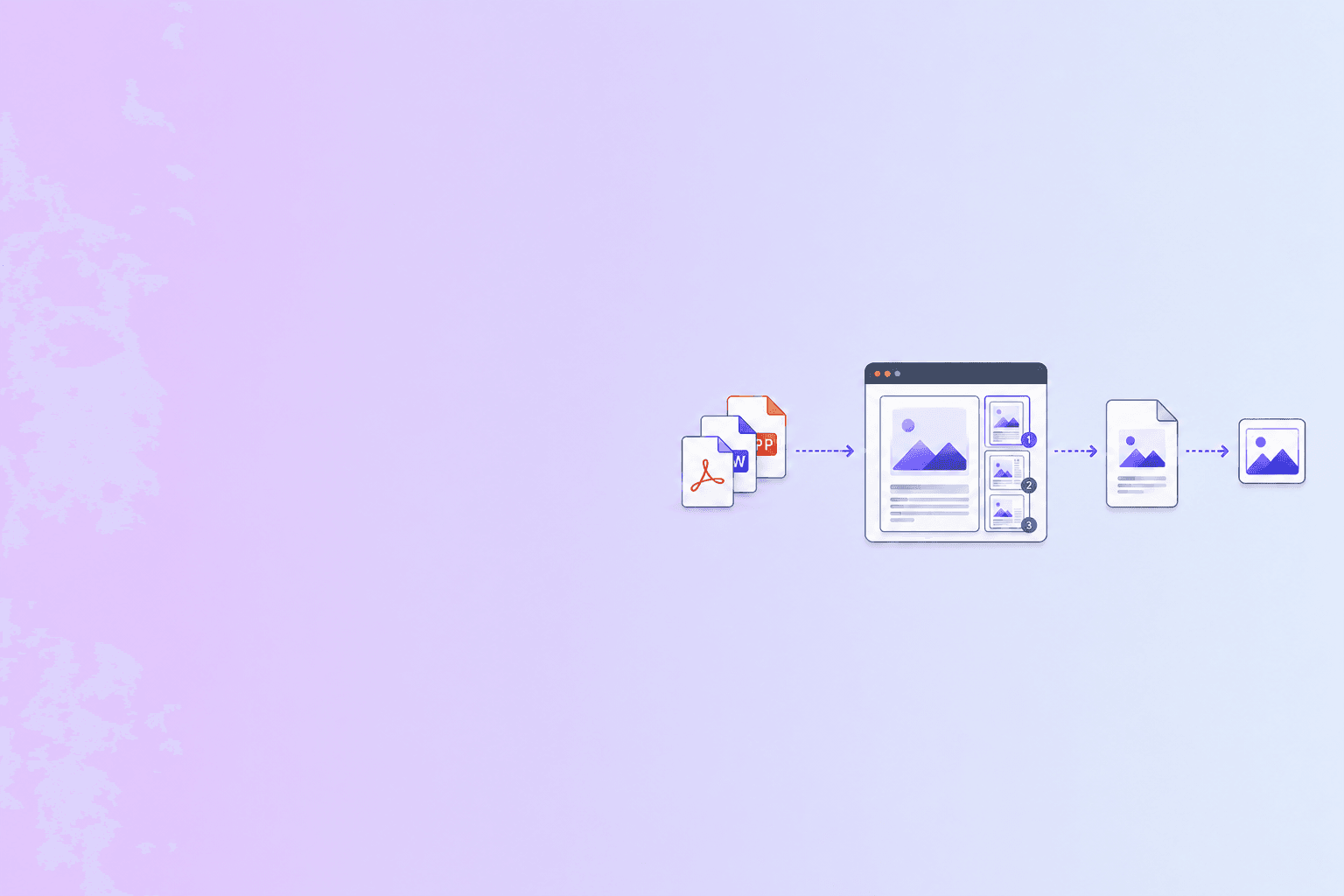
A document preview exporter converts pages of PDFs, Office files, and image-based documents into thumbnail or full-size preview images. It exists because users will not click into a folder of fifty invoice-final-v3.pdf files to figure out which one to open. Previews turn binary files into something a human can recognize in 200 milliseconds.
The exporter sits between raw document storage and any UI that lists, searches, or organizes documents: file pickers, DMS dashboards, RAG audit screens, ticketing systems, sales-tool attachment grids, customer portals. Anywhere a user sees a stack of documents, a preview exporter is quietly doing the rendering.
This guide covers the architecture, the formats, and the operational details that separate a hobby script from a preview pipeline that survives production load.
What the exporter actually has to do
For a single document, the job is conceptually small:
- Open the file.
- Render one or more pages to a bitmap.
- Encode the bitmap as a web-friendly image.
- Return or persist it.
In production, each step grows complications:
- Open the file. PDFs are a forgiving format; DOCX, PPTX, XLSX, RTF, ODT, and image-based formats are not. A general-purpose exporter has to normalize them all into something renderable.
- Render one or more pages. First-page thumbnails are the common case. But search results often want page 1 and the page containing the matched term. Document review tools want every page. The exporter must support page selection cleanly.
- Encode the bitmap. Resolution, format, and quality interact with bandwidth, storage cost, and visual sharpness.
- Return or persist it. Live rendering on every request is wasteful. Persisting to object storage with a cache key is the standard pattern.
A good exporter exposes all four steps as explicit parameters and produces deterministic output for the same input.
Browser-based vs server-side rendering
A document preview exporter can live in three places:
| Location | Strengths | Limits |
|---|---|---|
| Client (browser, native app) | No upload, no round-trip, no server cost, ideal for sensitive files | Constrained by device RAM and CPU, inconsistent across browsers, no persistence |
| Edge / serverless | Low latency, auto-scaled, cheap for sporadic traffic | Cold starts, memory limits, harder to manage native binaries |
| Dedicated render service | Consistent output, can persist to object storage, easy to monitor | Higher fixed cost, requires queue and worker management |
For DocuShell-style workflows that handle confidential PDFs, browser-based rendering with PDF.js is the privacy-preserving default. The file never leaves the device. Server-side rendering is reserved for documents already in storage or for bulk thumbnail jobs where consistency matters more than locality.
Most production systems eventually run both: client-side for interactive previews of just-uploaded files, server-side for persisted thumbnails in long-lived libraries.
How PDF page rendering actually works
A PDF page is not a bitmap. It is a content stream of drawing operators — move to coordinate, set font, fill text, stroke path, paint image. To produce a thumbnail you have to execute that stream.
Three engines dominate:
- PDF.js (Mozilla) — a pure-JavaScript PDF renderer that runs in the browser or in Node.js. It is the standard for client-side thumbnails because it requires no native binaries.
- Poppler / pdftoppm — a C++ rendering library, fast and faithful, the workhorse of most Linux-side conversion stacks.
- MuPDF — also C/C++, smaller footprint than Poppler, popular for embedded and mobile rendering.
Ghostscript is sometimes used too, but it is more often the slowest of the four for raster output and its licensing matters for commercial deployments.
The rendering API in each is similar in shape:
// PDF.js in the browser
const pdf = await pdfjsLib.getDocument({ data: fileBytes }).promise;
const page = await pdf.getPage(1);
const viewport = page.getViewport({ scale: 2 });
const canvas = document.createElement('canvas');
canvas.width = viewport.width;
canvas.height = viewport.height;
await page.render({
  canvasContext: canvas.getContext('2d'),
  viewport,
}).promise;
const blob = await new Promise(resolve => canvas.toBlob(resolve, 'image/webp', 0.85));
The scale parameter is the lever. Scale 1.0 produces a 72-DPI bitmap; scale 2.0 doubles linear resolution; scale 3.0 is appropriate for retina or high-DPI screens. Above 3.0 the bitmap balloons without visible gain.
What about DOCX, PPTX, and XLSX?
PDFs are easy compared to Office formats. There are two production-grade paths:
- Convert to PDF first, then render. LibreOffice in headless mode (
soffice --headless --convert-to pdf) is the open-source baseline. The DOCX/PPTX/XLSX gets converted to PDF, then the PDF gets rendered. This is the path most preview-as-a-service vendors use. - Render directly. Apryse, Aspose, and Syncfusion offer commercial native renderers for Office formats. They produce more faithful output but cost real money and add deployment complexity.
The PDF-intermediate path is slower but easier to operate. A typical DOCX-to-thumbnail looks like:
soffice --headless --convert-to pdf --outdir /tmp/work source.docx
pdftoppm -f 1 -l 1 -r 144 -png /tmp/work/source.pdf /tmp/work/thumb
The output thumb-1.png is your first-page preview. From there, the same encoding and storage rules apply as for native PDFs.
Output format and size guidance
A few rules that hold up under real traffic:
- WebP for storage. WebP is 25 to 35 percent smaller than equivalent-quality JPEG and is supported by every browser shipped since 2020. For preview thumbnails, file size matters more than the last 1 percent of compatibility.
- JPEG when bandwidth dominates. JPEG is still the right call when serving previews to embedded clients, ancient browsers, or PDF readers that do not handle WebP.
- PNG only when text needs to stay crisp. Lossless PNG is roughly 3 to 5x the size of WebP for the same page. Use it for previews of code, schematics, or fine-print legal text where readers will zoom in.
- AVIF is the future, not the present. It compresses better than WebP but encoding is much slower and not all CDN edge runtimes support it natively. Reserve it for high-traffic preview surfaces where storage and bandwidth are the dominant cost.
For dimensions, generate at the largest size you plan to display, then let CSS or a CDN downscale. Re-rendering for each viewport is wasteful and produces visible jitter as cached versions appear at different sizes.
A reasonable defaults table:
| Use case | Pixel dimensions | Format |
|---|---|---|
| List thumbnail | 200x260 | WebP at quality 80 |
| Card preview | 400x520 | WebP at quality 85 |
| Hover / modal preview | 800x1040 | WebP at quality 85 |
| Retina / high-DPI | 1200x1560 | WebP at quality 85 |
The 1.3:1 aspect ratio matches a standard letter-size or A4 page rendered as a portrait thumbnail. Landscape and square documents should be handled with letterboxing rather than aggressive cropping.
Multi-page previews and the index pattern
A thumbnail of page 1 is not always enough. Document review tools, e-discovery interfaces, and audit screens often need:
- A small thumbnail of every page (a "filmstrip").
- A high-resolution preview of the currently viewed page.
- A jump-to-page index keyed by page number.
The right data model is a single previews object keyed by {document_id, page_number, size}. Storage paths look like:
previews/doc_2X8R4ZQ9T6P/p001-thumb.webp
previews/doc_2X8R4ZQ9T6P/p001-large.webp
previews/doc_2X8R4ZQ9T6P/p002-thumb.webp
...
Render on demand for cold pages, render eagerly for the first N pages on upload. Most users open page 1 first, so a queue that renders pages 1 through 5 immediately and the rest lazily handles 95 percent of real access patterns at minimal cost.
When to render synchronously vs in a queue
Two extremes are tempting and both are wrong:
- Render synchronously inside the upload request. A 200-page PDF will time out before the upload response returns.
- Render every page eagerly on upload. Most pages will never be viewed. The cost is wasted.
The pragmatic pattern is:
- On upload, render page 1 synchronously if the document is small (under, say, 5 MB and 20 pages). This gives users an immediate preview in the UI.
- Enqueue a background job to render pages 2 through N at the standard sizes.
- On request for a page that has not yet been rendered, render it on the fly and cache the result.
This pairs well with a webhook-based pipeline. The render service emits a preview.batch.completed event when all pages are ready, and the UI can switch from on-the-fly to cached previews seamlessly. The webhook document automation guide walks through the signing and idempotency patterns those events need.
Sensitive documents need a privacy-aware exporter
Document previews can leak more than the document itself. Anything the renderer does — temporary file paths, debug logs, third-party API calls, CDN cache keys — is a potential exposure surface for legal contracts, financial reports, HR letters, and patient records.
For sensitive workflows, two design choices matter most:
- Render locally where possible. Browser-based rendering with PDF.js keeps the file in the user's tab. No upload, no server processing, no third-party. DocuShell uses this pattern across PDF to JSON / Excel, Compress PDF, and other tools.
- Strip identifying metadata before persisting. Even when server-side rendering is necessary, the resulting PNG/WebP/JPEG can carry EXIF, color profile data, and rendering signatures that leak more than you intended. A simple
exiftool -all=pass before upload removes most of it.
For organizations under SOC 2, HIPAA, or GDPR scrutiny, the preview pipeline should be reviewed alongside the rest of the document stack. A common gap is "we redacted the PDF but the preview thumbnail still shows the original page 1."
A short benchmark to ground expectations
On a modest server (4 vCPU, 8 GB RAM) running Poppler 23.x:
| Document | Pages | Size | Render to 200x260 WebP |
|---|---|---|---|
| Text-only invoice | 1 | 80 KB | 30 ms |
| Mixed text / image report | 20 | 4 MB | 220 ms for page 1 |
| Scanned legal contract | 50 | 25 MB | 480 ms for page 1 |
| Heavy CAD plan | 4 | 18 MB | 1.4 s for page 1 |
Two things to take away:
- First-page rendering for typical office documents is sub-second.
- Rendering scales roughly linearly with bitmap pixel count, not page count. Asking for 1200x1560 instead of 200x260 makes the same page roughly 30x more expensive.
That ratio is why generating one size and downscaling is dramatically cheaper than rendering five sizes individually.
Where DocuShell fits
DocuShell's document tools already include browser-based rendering for inspection. The same primitives power thumbnail-style previews across the suite:
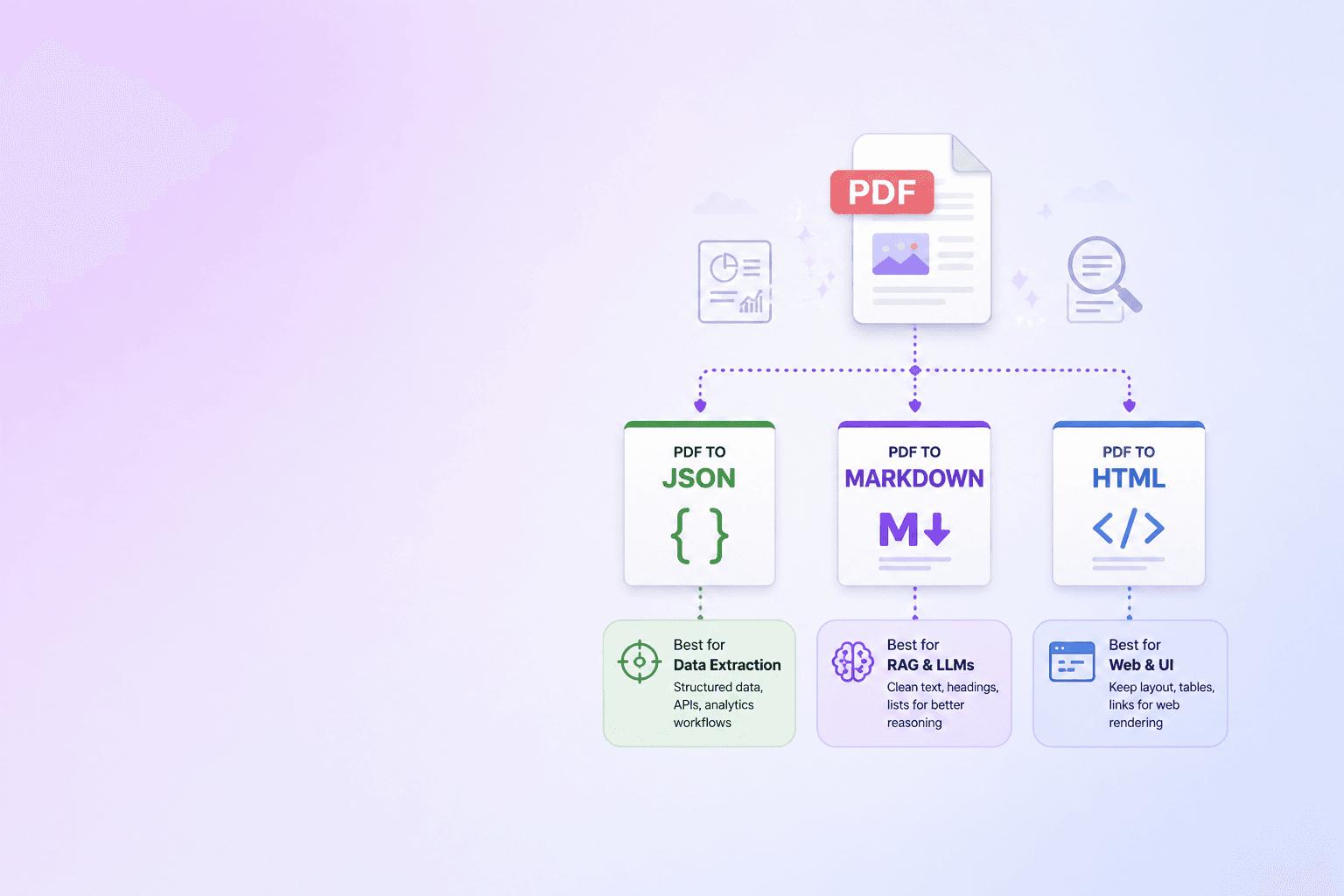
- PDF to JSON / Excel for inspecting parsed structure alongside a page preview.
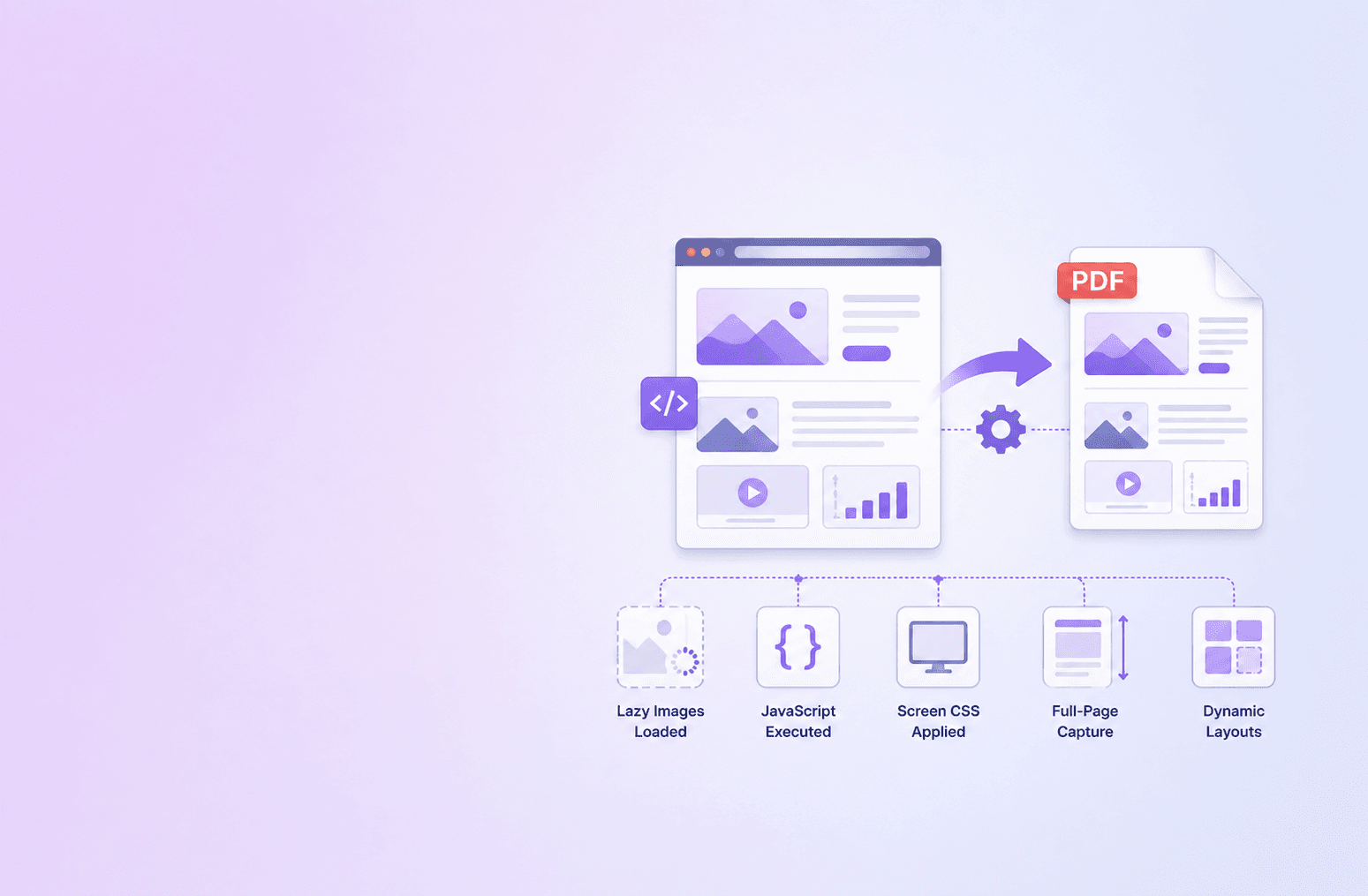
- Webpage to PDF for converting JavaScript-rendered web pages into stable PDFs that previews can be generated from.
- Compress PDF when the preview source needs to be smaller before storage.
- Organize PDF for reordering pages before generating the per-page preview index.
For automated pipelines, pair previews with the webhook document automation guide so the moment a parse finishes, the matching preview set is also ready.
Render the largest size once, downscale in the browser or CDN, and cache by document ID and page number. Keep sensitive documents on the device by rendering in the browser whenever possible.
Common mistakes
A short list of things we see go wrong in real preview pipelines:
- Treating preview as a free side effect of upload. It is not. A document with 500 pages is a 500-render job. Without a queue and a budget, it will starve the rest of your workload.
- Generating previews on every viewport resize. Pre-render a few sizes, then scale in CSS. Re-rendering on resize is the most common cause of preview-latency complaints.
- Storing previews next to the document. Use a dedicated bucket or prefix with separate lifecycle rules. Previews are derived data and should be regeneratable.
- Embedding signed source URLs in the preview key. Cache keys live longer than signed URLs. Use stable IDs in the path.
- Skipping the "did the render succeed?" check. A renderer that produces a blank white image is silent failure. Compare the bytes against a known all-white fingerprint and re-render with a fallback engine if needed.
The short version
A document preview exporter is a small piece of infrastructure with a disproportionate effect on UX. Get the page rendering right, pick the right format and size, persist by stable key, and decide on browser vs server based on privacy and consistency requirements. The exporter that ages well is the one that treats previews as cheap derived artifacts, not as a precious output to recompute on every request.
Inspect a PDF in the browser without uploading it — the same rendering layer that powers previews.
Try PDF to JSON / ExcelFrequently Asked Questions
Free Tool
PDF to JSON
Turn PDFs into structured, source-aware data for RAG, review, and automation.
Try PDF to JSONDocuShell Team
The DocuShell editorial group writes and maintains guides for everyday PDF workflows, with updates made when tool behavior or documented limits change. See our editorial standards for the process behind each article.
Focus: Browser-based PDF rendering, server-side document conversion, and preview pipelines
Questions or feedback? Get in touch.