First identify the PDF you actually have
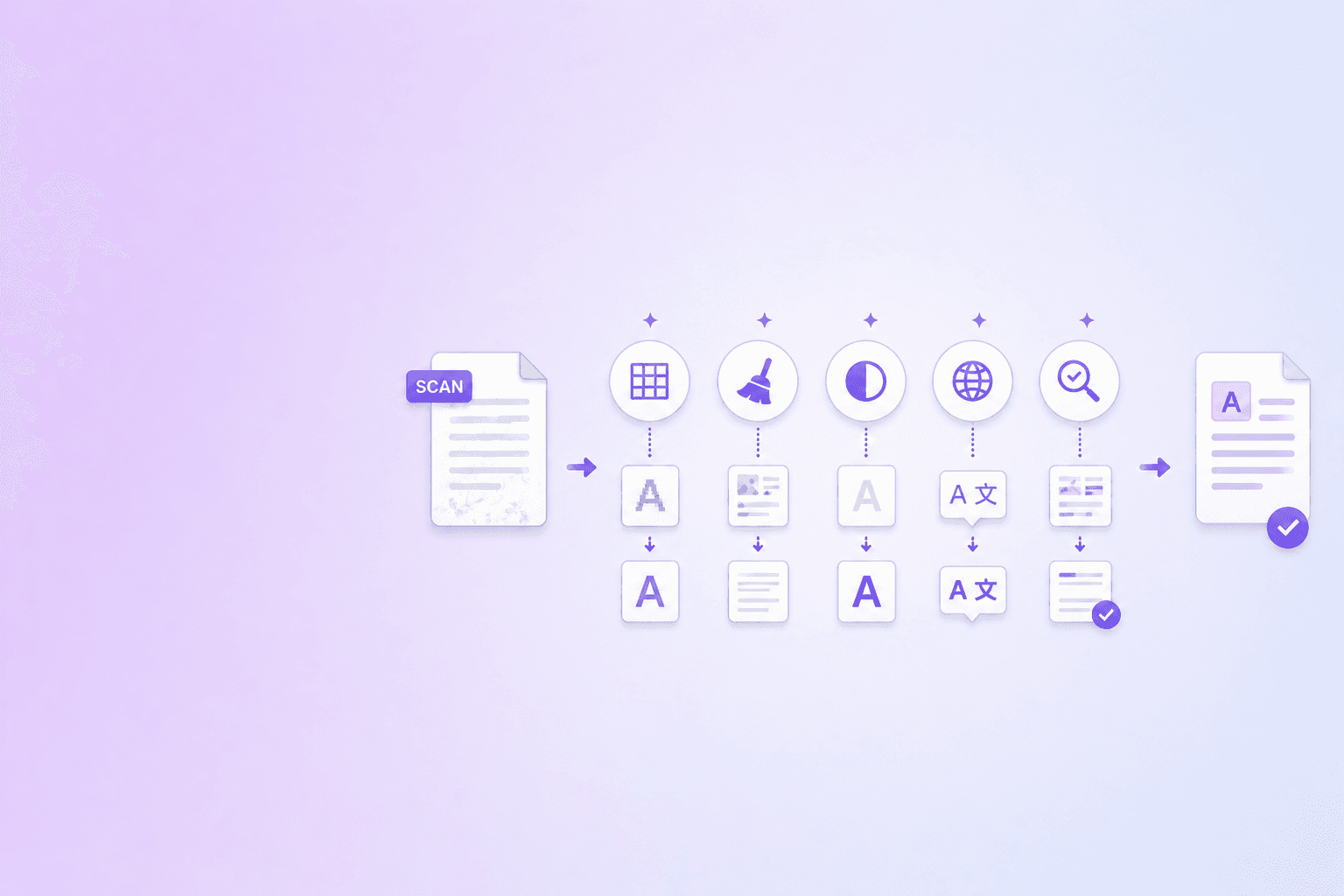
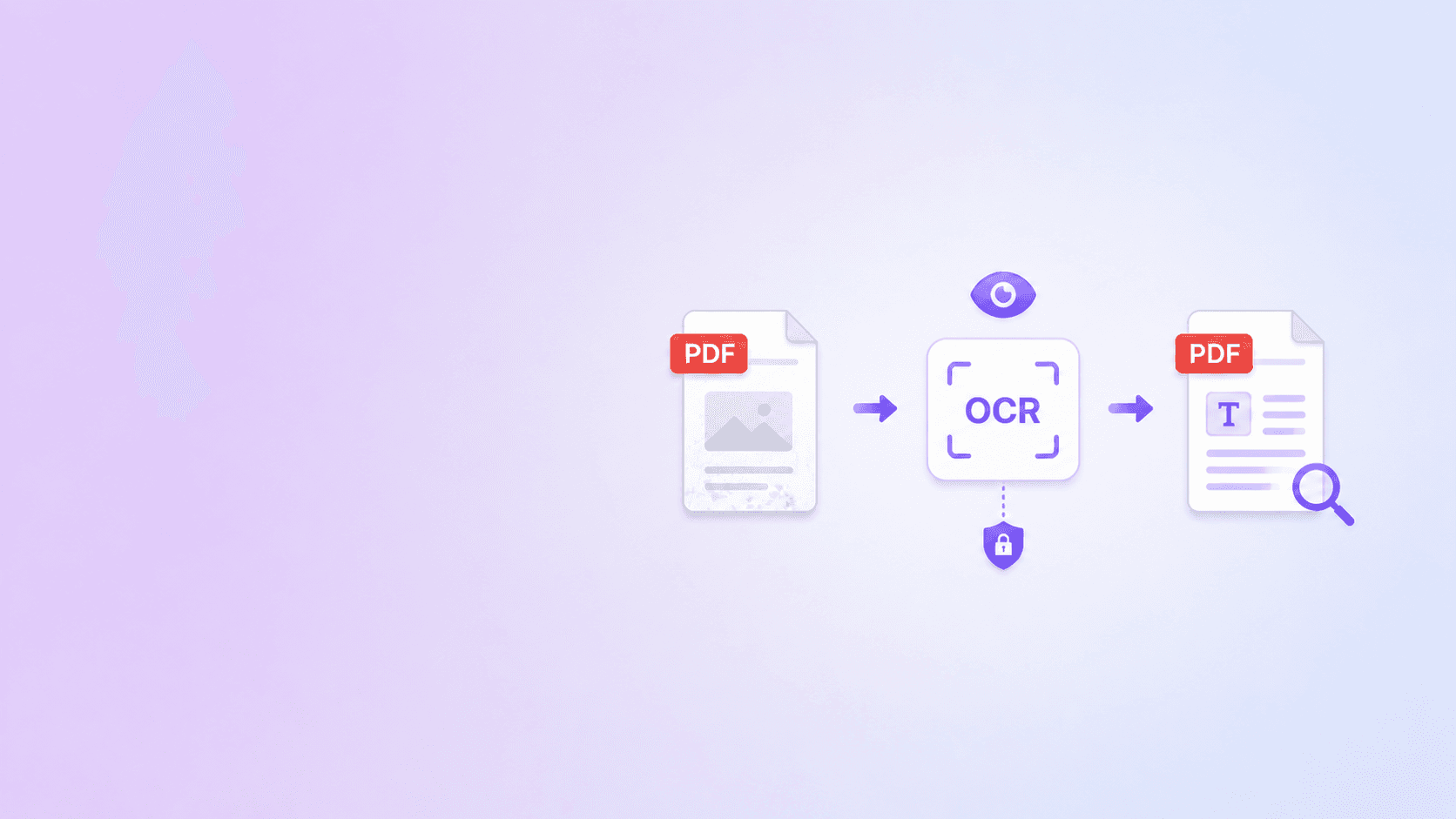
Parse a scanned PDF into Markdown and JSON by running OCR first, then rebuilding document structure from the recognized words and their page positions. OCR alone gives you text. A useful parser also restores headings, paragraphs, lists, tables, reading order, and source references.
| PDF condition | Text selection | Recommended path | Main QA risk |
|---|---|---|---|
| Native text | Works across pages | Structured parsing | Reading order and tables |
| Image-only scan | No selectable text | OCR-capable parsing | Character recognition |
| Mixed PDF | Works on some pages | Page-level hybrid path | Duplicate or missing layers |
| Searchable scan | Text exists behind image | Parse plus visual QA | Misaligned OCR text layer |
| Handwritten pages | Usually none | Specialized recognition and review | Low confidence and ambiguity |
Confirm that OCR is needed
Try selecting text in the PDF. If the page behaves like one large image, it is probably image-only. Some files are mixed: native text on a cover page and scanned images later.
A hybrid workflow handles both. DocuShell Parse PDF can route image-heavy pages through its configured OCR-capable path while keeping text-native pages on the faster parser path.
Improve the scan before extraction
Deskew rotated pages, use a clear source, and avoid heavy compression. Small text and faint photocopies make recognition harder. The OCR accuracy guide covers practical preparation steps.
If you need a searchable PDF for local use, the browser-based OCR PDF tool creates a text layer without sending the file to the server.
Create Markdown and JSON for different jobs
Markdown is useful for reading, search, chunking, and LLM context. JSON is better for applications that need element types, hierarchy, pages, and coordinates.
Keep both when possible. A human can inspect Markdown quickly, while a pipeline can validate and route structured JSON.
Expect OCR uncertainty
OCR errors are not evenly distributed. Names, dates, decimal points, part numbers, and table cells often matter more than ordinary prose.
Flag sparse pages and suspicious values. For finance, legal, medical, or hiring workflows, compare critical fields with the original scan before taking action.
Preserve the route back to the page
Store page numbers and source coordinates with the extracted elements. That makes corrections easier and lets downstream RAG answers cite the scanned evidence.
A scanned PDF becomes useful to AI only when the extracted text is readable, structured, and still connected to its source.
Choose between searchable PDF and structured extraction
A searchable PDF adds a text layer behind the page image. It is useful for local search, selection, and accessibility. Structured extraction goes further by creating headings, paragraphs, lists, tables, and machine-readable source metadata.
Use the browser-based OCR PDF tool when you want a searchable local copy. Use Parse PDF when an application needs JSON, Markdown, citations, or automation.
Example quality checks
After OCR, sample pages from the beginning, middle, and end. Check names, dates, decimal numbers, currency symbols, page rotation, and table headers. Compare character count and word count across pages to find unexpectedly empty results.
For a 100-page scan, do not review only page 1. Scanner settings, inserts, and photocopy quality often change within the same file.
High-risk OCR fields: names, dates, decimal points, currency symbols, policy negations, account numbers, checkboxes, and table headers deserve targeted validation even when ordinary prose looks clean.
What the two outputs should do
Markdown should make the document readable: headings, lists, tables, and paragraph flow. JSON should make it inspectable: element type, page, coordinates, hierarchy, warnings, and OCR mode.
Do not create independent Markdown and JSON pipelines. Generate both from the same parsed document model so a Markdown section can be traced back to its JSON elements and source page.
Here is an application-side normalized record, not the raw DocuShell parser response. It shows the fields a downstream system can derive while retaining OCR provenance:
{
  "document_id": "scan-2026-0041",
  "page": 3,
  "processing_mode": "ocr",
  "quality": {
    "text_density": 0.71,
    "warnings": ["low_contrast", "table_review_required"]
  },
  "elements": [
    {
      "source_element_id": "el_301",
      "type": "heading",
      "text": "Payment Terms",
      "bbox": [88, 112, 514, 146]
    }
  ],
  "markdown_anchor": "payment-terms"
}
Keep the parser's original structured output as the canonical source. Normalize into an application schema only when a consumer needs it.
Handle mixed documents
Some PDFs contain native text pages, scanned exhibits, and photographed signatures. A hybrid workflow should preserve native text where it exists and use OCR only where needed. Re-running OCR over good text can introduce errors and duplicate layers.
Store a page-level processing mode and warning state so downstream systems know which pages were recognized from images.
Plan for languages and handwriting
Confirm the configured OCR language before processing multilingual documents. Names and addresses may not match the main document language. Handwriting needs separate expectations and usually more review.
For preparation details, use the OCR accuracy guide. To understand the downstream risk of weak recognition, read how OCR quality affects LLM hallucination risk. If the output will feed RAG, preserve source metadata with the PDF chunking guide.
Frequently Asked Questions
Free Tool
PDF to JSON
Turn PDFs into structured, source-aware data for RAG, review, and automation.
Try PDF to JSONDocuShell Team
The DocuShell editorial group writes and maintains guides for everyday PDF workflows, with updates made when tool behavior or documented limits change. See our editorial standards for the process behind each article.
Focus: OCR, structured PDF parsing, and document QA
Questions or feedback? Get in touch.