You have probably encountered the term "PDF/A" in a legal filing portal, a government form, or a corporate compliance guide — and wondered what it actually means and why you cannot just send a regular PDF.
PDF/A is not a mystery. It is a specific, well-defined version of the PDF format built for one purpose: making sure a document looks exactly the same decades from now as it does today. This guide explains what it is, how it works, when you need it, and how it differs from the standard PDF format you use every day.
Quick Answer: PDF/A Standard Overview
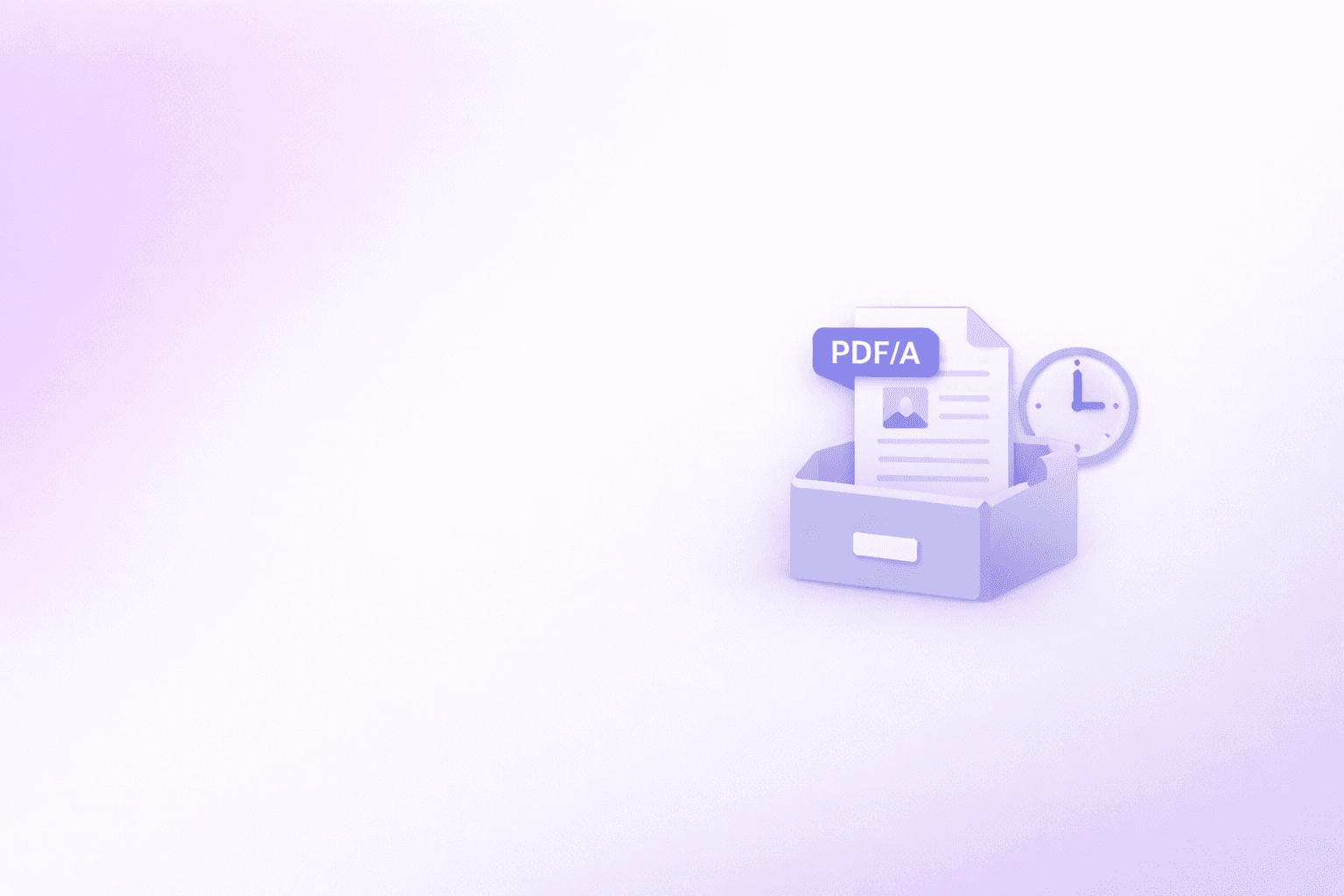
PDF/A is an ISO-standardized version of the PDF file format specifically designed for long-term document archiving. Unlike a regular PDF, a PDF/A file is fully self-contained — all fonts, color profiles, and content are embedded directly inside the file, so it will render identically on any device, in any software, today or in fifty years.
Why Does PDF/A Exist?
The problem with regular PDF files is that they can rely on external resources. A standard PDF might reference a font installed on your operating system rather than embedding the font inside the file itself. It might contain links to external websites. It might use multimedia objects or encryption.
All of these features are completely fine for day-to-day document sharing. But for long-term archiving, they are serious problems.
Imagine a legal contract signed in 2005 that referenced the font "Helvetica Neue" from the user's system rather than embedding it. Open that PDF today on a machine where Helvetica Neue is not installed and the rendering changes. Text may reflow. Layout shifts. The document no longer looks like what was signed.
For legal, governmental, medical, and financial records that need to be preserved for 10, 30, or 100 years, this is unacceptable.
The International Organization for Standardization (ISO) published the first PDF/A standard — ISO 19005-1 — in 2005, establishing a strict subset of the PDF specification that guarantees visual fidelity indefinitely. The "A" stands for Archive.
What Makes a PDF/A Different from a Regular PDF?
PDF/A is a constrained version of PDF. It removes or prohibits certain features and adds hard requirements for others.
What PDF/A Requires
- All fonts must be fully embedded inside the file. No font can be referenced from the operating system or an external source.
- Color spaces must be device-independent. All colors must use ICC color profiles embedded within the file, ensuring colors appear consistent across different screens and printers.
- All content must be self-contained. No external content, JavaScript, or links to dynamic resources are permitted.
- Metadata must be embedded using XMP (Extensible Metadata Platform) to describe the document's properties.
What PDF/A Prohibits
- Encryption and DRM. A PDF/A file cannot be password-protected, because future archival systems need to be able to open and read it without access credentials.
- External references. No hyperlinks to fonts, stylesheets, or media hosted outside the file.
- Audio and video content (in PDF/A-1 and PDF/A-2).
- JavaScript. No scripts that alter the document's display or behavior dynamically.
- Transparency (in PDF/A-1 only). Transparent layers are not permitted in the strictest standard, though later versions added this support.
PDF/A Versions Explained
The PDF/A standard has evolved over time. Understanding which version applies to your use case is important.
| Standard | Year | Based On | Key Features | Best For |
|---|---|---|---|---|
| PDF/A-1a | 2005 | PDF 1.4 | Strictest. Full accessibility (tagged structure). No transparency. | Fully accessible archival documents |
| PDF/A-1b | 2005 | PDF 1.4 | Strict. Visual fidelity guaranteed. No transparency required. | General archiving without accessibility requirements |
| PDF/A-2a | 2011 | PDF 1.7 | Adds transparency, layers (Optional Content Groups), JPEG 2000 compression, digital signatures. Full accessibility. | Modern documents with design complexity |
| PDF/A-2b | 2011 | PDF 1.7 | Same as 2a but without mandatory accessibility structure. | Most common modern archiving standard |
| PDF/A-2u | 2011 | PDF 1.7 | Adds Unicode mapping for text extraction, without full accessibility. | Documents where text searchability is required |
| PDF/A-3a/3b/3u | 2012 | PDF 1.7 | Allows embedding of arbitrary file types (Excel, XML, CAD files, etc.) as attachments inside the archive. | Documents that include source data attachments |
| PDF/A-4 | 2020 | PDF 2.0 | Based on the latest PDF spec. Updated digital signature requirements. | Cutting-edge archival systems |
Practical guidance: For the vast majority of use cases, PDF/A-2b is the right choice. It supports modern document features like transparency and JPEG 2000 compression (which produces smaller files than standard JPEG), it does not require the additional overhead of full accessibility tagging, and it is widely supported by courts, government portals, and enterprise archival systems.
Who Uses PDF/A and Why?
Government and Legal
Courts in the United States, Germany, France, the Netherlands, and many other jurisdictions mandate PDF/A for official electronic filings. The U.S. federal court system's CM/ECF filing system, for example, requires PDF/A-1a or PDF/A-1b for case documents. Government agencies at the national and municipal level use PDF/A for records that must be retained for decades under public records laws.
Healthcare
Medical records regulations in the EU (under GDPR and national healthcare laws) and the U.S. (under HIPAA and state laws) often require patient records to be stored in formats that guarantee long-term readability. PDF/A satisfies these requirements. Hospital systems, insurance companies, and clinical research organizations use it for archiving patient data, clinical trial results, and insurance claim records.
Finance and Accounting
Financial statements, audit reports, tax filings, and regulatory submissions submitted to bodies like the SEC, FINRA, and EU financial supervisors are frequently required in PDF/A format to ensure the preserved record of the filing matches what was originally submitted, without any possibility of post-submission rendering differences.
Academic Research and Libraries
Universities, national libraries, and digital preservation organizations use PDF/A for archiving research papers, theses, and historical documents. The British Library, the Library of Congress, and JSTOR are among the institutions that use or recommend PDF/A for digital preservation workflows.
Corporate Records Management
For companies subject to e-discovery obligations or multi-year document retention requirements, converting records to PDF/A ensures that archived emails, contracts, and internal documents remain fully readable throughout their retention period — even if the software that originally created them is no longer supported.
PDF/A vs. Regular PDF: A Direct Comparison
| Feature | Regular PDF | PDF/A |
|---|---|---|
| Font embedding | Optional | Mandatory |
| External resources | Permitted | Prohibited |
| Encryption | Supported | Prohibited |
| JavaScript | Supported | Prohibited |
| Multimedia (audio/video) | Supported | Prohibited (PDF/A-1/2) |
| Transparency | Supported | PDF/A-2+ only |
| File attachments | Supported | PDF/A-3+ only |
| Color management | Optional | Mandatory (ICC profiles) |
| Long-term readability guarantee | No | Yes |
| File size | Smaller | Slightly larger |
| Use case | Everyday sharing | Long-term archiving |
How to Create or Convert a PDF to PDF/A
You cannot create a PDF/A file directly from most word processors or print dialogs — the conversion typically requires dedicated software that can verify and enforce compliance.
Adobe Acrobat Pro
The most widely used option for enterprise environments. In Acrobat Pro, go to File → Save As → PDF/A and choose the conformance level. Acrobat will run a preflight check, flag any non-conforming elements, and offer to fix them automatically.
Ghostscript (Free, Command Line)
Ghostscript is a free, open-source tool that can convert PDFs to PDF/A via command line. It is widely used in automated document processing pipelines. The basic command for PDF/A-2b conversion is:
gs -dPDFA=2 -dBATCH -dNOPAUSE -sProcessColorModel=DeviceCMYK \
   -sDEVICE=pdfwrite -dPDFACompatibilityPolicy=1 \
   -sOutputFile=output.pdf input.pdf
LibreOffice
LibreOffice Writer can export directly to PDF/A-1b via File → Export as PDF — simply check the "PDF/A-1a" option in the export dialog. This is a free and accessible option for users who work in LibreOffice.
Online Converters
Various online tools offer PDF to PDF/A conversion. If you use one, ensure you choose a service that processes files locally or has a clear, audited privacy policy — especially for sensitive documents. Always verify the output file's compliance using a PDF/A validator before submitting it to a court or regulatory body.
How to Verify That a File Is PDF/A Compliant
Creating a file with PDF/A settings enabled does not guarantee full compliance. Many tools will produce a file with a PDF/A header but with non-conforming elements inside. Always validate before submission.
Adobe Acrobat: Open the file and run Tools → Print Production → Preflight → PDF/A compliance.
veraPDF (Free, Open Source): The most widely trusted free PDF/A validator. Available at verapdf.org. It checks the full specification for any conformance level and produces a detailed report.
3-Heights PDF Validator: A validation tool from pdf-tools.com for checking PDF and PDF/A conformance.
Common PDF/A Problems and How to Solve Them
"Font not embedded" error during conversion. This is the most common compliance failure. The source document uses a system font that is not embedded in the PDF. Solution: Open the source document, change the font to one that can be fully embedded (most professional typefaces allow this), and re-export.
"Color space not compliant" error. The document uses RGB or CMYK colors without an ICC profile. Solution: In your PDF creation software or Acrobat's preflight tool, convert all colors to a standard color profile like sRGB IEC61966-2.1 or FOGRA39.
"Transparency not supported in PDF/A-1." Objects with transparency (drop shadows, semi-transparent overlays) violate PDF/A-1. Solution: Either flatten the transparency before conversion or upgrade to PDF/A-2b, which supports transparency.
The file is too large after conversion. PDF/A embeds fonts and color profiles, which increases size. If you need to reduce the file size, use the Compress PDF tool after validation — but be aware that aggressive compression can occasionally introduce elements that violate PDF/A compliance, so re-validate after compressing.
JavaScript is present in the file. PDFs exported from interactive forms often contain JavaScript for validation logic. Strip all JavaScript before converting. In Acrobat, use Tools → JavaScript → Remove All JavaScript.
Preparing Your PDF for Long-Term Archiving
Even if you do not need strict PDF/A compliance, these practices will make any archived PDF more resilient:
Embed all fonts. When saving from Word, InDesign, or any authoring tool, always choose the option to embed all fonts. This prevents rendering differences even in non-PDF/A files.
Use standard color profiles. Stick to sRGB for screen documents and FOGRA39 for print documents. Avoid proprietary spot colors unless they are fully embedded.
Flatten interactive form fields. If the document contains fillable form fields, flatten them to static content before archiving. Dynamic fields can behave differently across PDF reader versions.
Remove unnecessary metadata. Strip out hidden revision history, comments, and author information if the document is intended for external submission or public archiving.
Compress thoughtfully. Large archive files are a practical problem. Use the Compress PDF tool to reduce file size, but verify compliance afterward if strict PDF/A is required.
Combine related documents. If you are archiving a multi-part document, use the Merge PDF tool to combine all parts into a single self-contained archive file. This prevents related documents from becoming separated over time. For more on this, see How to Add Pages to a PDF & Combine PDFs Online.
Organize and remove unnecessary pages. Clean up the document before archiving using the Organize PDF tool. Remove blank pages, duplicate pages, or placeholder content that should not be in the permanent record.
Pro Tips for Working with PDF/A
Always validate before submitting. Do not assume your conversion tool produced a compliant file. Run every PDF/A document through veraPDF or a similar validator before sending it to a court, regulator, or archive system.
Use PDF/A-2b as your default archival standard. It strikes the right balance between strictness, compatibility, and feature support. PDF/A-1b is worth using only if the receiving system specifically requires it.
Create PDF/A from the source, not from a scan. Converting a scanned image PDF to PDF/A is possible but results in a large, image-only file. Where possible, export directly from the authoring application (Word, InDesign, etc.) to PDF/A for the best quality and smallest file size.
Keep the original editable source file. PDF/A is a final archival format — it is not designed for editing. Always retain the original .docx, .indd, or other source file alongside the archived PDF/A.
Check your jurisdiction's requirements. "PDF/A" is not a single requirement — courts and regulators may specify PDF/A-1a, PDF/A-1b, PDF/A-2b, or another conformance level. Using the wrong level can result in filing rejection.
Use structured tagging for accessibility. If your documents will be read by people using screen readers, use the "a" conformance levels (PDF/A-1a, PDF/A-2a) rather than "b" levels. These require proper document structure tagging that also makes the document fully accessible.
Split large archive files before storage. If you are archiving a very large multi-section document and need to stay under a file size limit, use the Split PDF tool to divide it into logical sections before converting each to PDF/A.
Frequently Asked Questions
What is PDF/A in simple terms?
PDF/A is a version of the PDF format designed so that a document will look exactly the same no matter when or where it is opened — even decades in the future. It achieves this by embedding everything the file needs to display correctly (fonts, colors, graphics) directly inside the file, with no reliance on external resources.
Is PDF/A the same as a regular PDF?
No. PDF/A is a strict, limited subset of the PDF specification. It removes features that could cause a document to look different in the future (like external font references or JavaScript), and it requires features that guarantee consistency (like fully embedded fonts and ICC color profiles).
When should I use PDF/A?
Use PDF/A when you need to archive a document that must remain visually identical for years or decades. Legal filings, government records, medical records, financial statements, and academic research archives are the most common use cases.
What is the difference between PDF/A-1, PDF/A-2, and PDF/A-3?
PDF/A-1 (2005) is the strictest, based on PDF 1.4 — no transparency, no layers. PDF/A-2 (2011) adds transparency, layers, digital signatures, and JPEG 2000 compression. PDF/A-3 (2012) adds the ability to embed arbitrary file attachments (like Excel or XML) inside the archive. For most users, PDF/A-2b is the right choice.
Can I convert a regular PDF to PDF/A?
Yes, using tools like Adobe Acrobat Pro, Ghostscript, or LibreOffice. After converting, always validate the output using a tool like veraPDF to confirm compliance before submitting.
Does PDF/A cost anything?
The PDF/A standard itself is free to read and implement. Free tools like Ghostscript and LibreOffice can create PDF/A files at no cost. Adobe Acrobat Pro, which handles conversions more conveniently, is a paid product.
Can I open a PDF/A file in a normal PDF reader?
Yes. PDF/A is fully backward-compatible with any standard PDF reader. You do not need special software to open or view PDF/A files — Adobe Reader, Preview, Chrome, and any other PDF viewer will open them without issue.
Is PDF/A required by law?
In many jurisdictions for specific purposes, yes. U.S. federal courts, EU government agencies, and many healthcare regulators require PDF/A for official document submissions. Check the specific requirements of the body you are submitting to.
Conclusion
PDF/A is not just a bureaucratic technicality. It is a genuinely important standard that solves a real problem: making sure your documents remain readable and visually identical 10, 30, or 100 years from now, regardless of what operating systems, fonts, or software ecosystems exist at that future point.
If you are preparing documents for legal filing, long-term business archiving, government submission, or healthcare records, PDF/A is the correct format. Understanding which conformance level to use — and always validating your output — is the difference between a compliant submission and a rejected filing.
Before converting documents to PDF/A, make sure they are clean and well-organized. Use Compress PDF to optimize large files, Merge PDF to consolidate multi-part documents into a single archive, and Organize PDF to remove unnecessary pages. Those same tools are especially useful for legal filings, healthcare record packets, finance archives, government submissions, and university deposits where the final PDF/A package has to be both compliant and easy to review.
For guidance on combining documents before archiving, see How to Add Pages to a PDF & Combine PDFs Online.
Also useful: PDF vs. Word — Which Format Should You Use? | How to Compress a PDF Without Losing Quality | How to Combine Multiple PDFs Into One
Frequently Asked Questions
DocuShell Editorial Desk
DocuShell Editorial Desk is the byline we use for product-tested guides reviewed against the live tool flow, privacy boundaries, and file-handling rules before publication. See our editorial standards for the process behind each article.
Focus: Product-tested editorial byline for compliance-sensitive PDF workflows, including archiving, document preparation, and submission requirements.
Questions or feedback? Get in touch.