Use Airtable as an operations layer
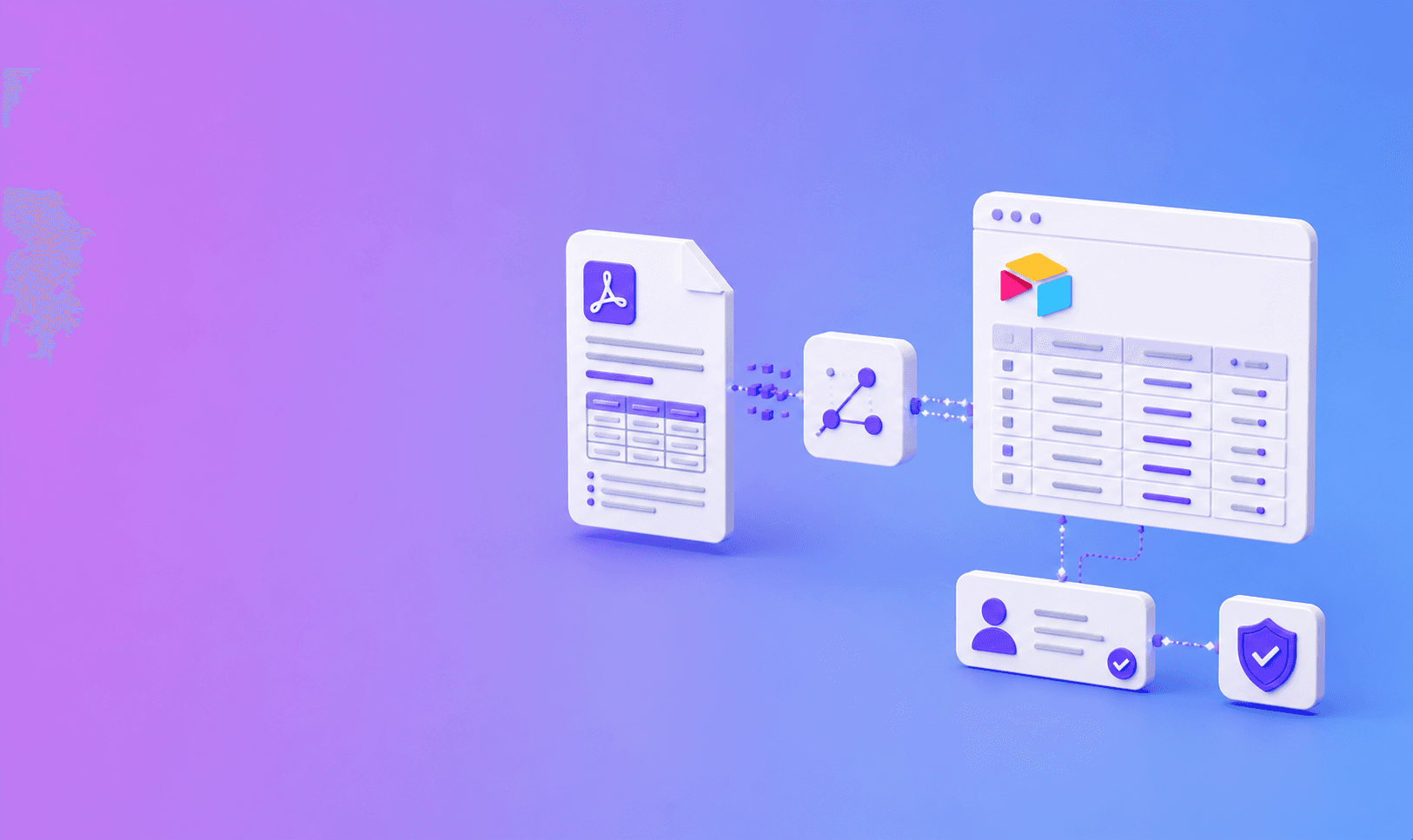
Send parsed PDF data to Airtable by mapping a stable subset of the structured JSON into explicit columns. Use the parse job ID or your own document ID as the unique key, then upsert instead of blindly creating records.
Recommended base schema
| Table | Key fields | Purpose |
|---|---|---|
| Documents | source_id, job_id, status, parser_version | One record per processed source |
| Extracted Items | item_id, document link, type, value | Repeated line items or fields |
| Evidence | document link, page, bbox, protected URL | Trace values to source |
| Reviews | document link, owner, state, reason | Human correction workflow |
| Sync Log | event_id, destination, status, time | Dedupe and reconciliation |
Design Airtable before the automation
Create fields for source document ID, file name, job status, received date, review state, and the business values you actually need. Add page references beside extracted values that may need verification.
Do not turn one long-text field into a dumping ground for an entire document. Airtable works best as an operations layer, not a replacement for source storage or a vector index.
Parse into predictable JSON
Use DocuShell Parse PDF to create structured output. Keep the original document hierarchy and source metadata in your processing system, then transform selected fields for Airtable.
If a value comes from a table, retain the table title and page number in the record or a linked evidence table.
Connect through a workflow tool
DocuShell can send completion events to n8n, Zapier, Make, or a custom endpoint through its webhook integration. The workflow fetches the result, validates required fields, and uses the Airtable API or connector to update the base.
Route incomplete or ambiguous extraction to a review view instead of filling missing fields with guesses.
Upsert and reconcile
Look up the unique source or job ID before writing. If a record exists, update it. Store the processing version so a later re-parse can be distinguished from a duplicate webhook.
Run a periodic check for completed jobs without Airtable records.
Keep privacy boundaries clear
Send only the fields the operational team needs. Restrict base access and decide how long extracted personal or confidential data should remain.
Automation is valuable when it removes copying without removing accountability. Keep the source link and review status close to every important field.
A base design that stays manageable
Use one Documents table for job-level data and linked tables for repeated entities such as extracted line items, candidates, or clauses. Do not create a new column for every field encountered in a new document type.
A Documents record can hold source ID, parser version, status, received time, document type, review owner, and protected evidence link. Child records keep page references and normalized values.
Example validation rules
Before writing, check required fields, date formats, allowed status values, and maximum text length. For financial data, keep original strings beside normalized numbers. For candidate data, do not infer missing personal details.
Send validation failures to a Review Needed view with the job ID and reason.
{
  "source_id": "invoice-2026-00418",
  "job_id": "job_01JX8Y5Y",
  "status": "needs_review",
  "invoice_number": "INV-418",
  "total_original": "$4,281.90",
  "total_normalized": 4281.90,
  "source_page": 1
}
Airtable boundary: a base is useful for operations and review. It is not automatically the right system for full document text, vector search, regulated records, or permanent source storage.
Airtable limits and operations
Plan for API rate limits, record limits, attachment storage, and automation execution history. Batch writes where supported, but keep each write idempotent. Store a last-synced timestamp and processing version for reconciliation.
Review base permissions and shared views. A restricted source system loses its protection if the extracted data lands in a broadly shared base.
Build the link back to source
Use a requester-scoped application URL or job reference rather than a permanent public artifact URL. The reviewer should authenticate before opening sensitive evidence.
For routing, follow n8n PDF parsing automation or Zapier webhook workflows. Protect the output using secure PDF API download links, and use structured JSON with page coordinates for auditable fields.
Frequently Asked Questions
Free Tool
PDF to JSON
Turn PDFs into structured, source-aware data for RAG, review, and automation.
Try PDF to JSONDocuShell Team
The DocuShell editorial group writes and maintains guides for everyday PDF workflows, with updates made when tool behavior or documented limits change. See our editorial standards for the process behind each article.
Focus: Structured document routing and Airtable workflow design
Questions or feedback? Get in touch.