Where Zapier fits, and where it does not
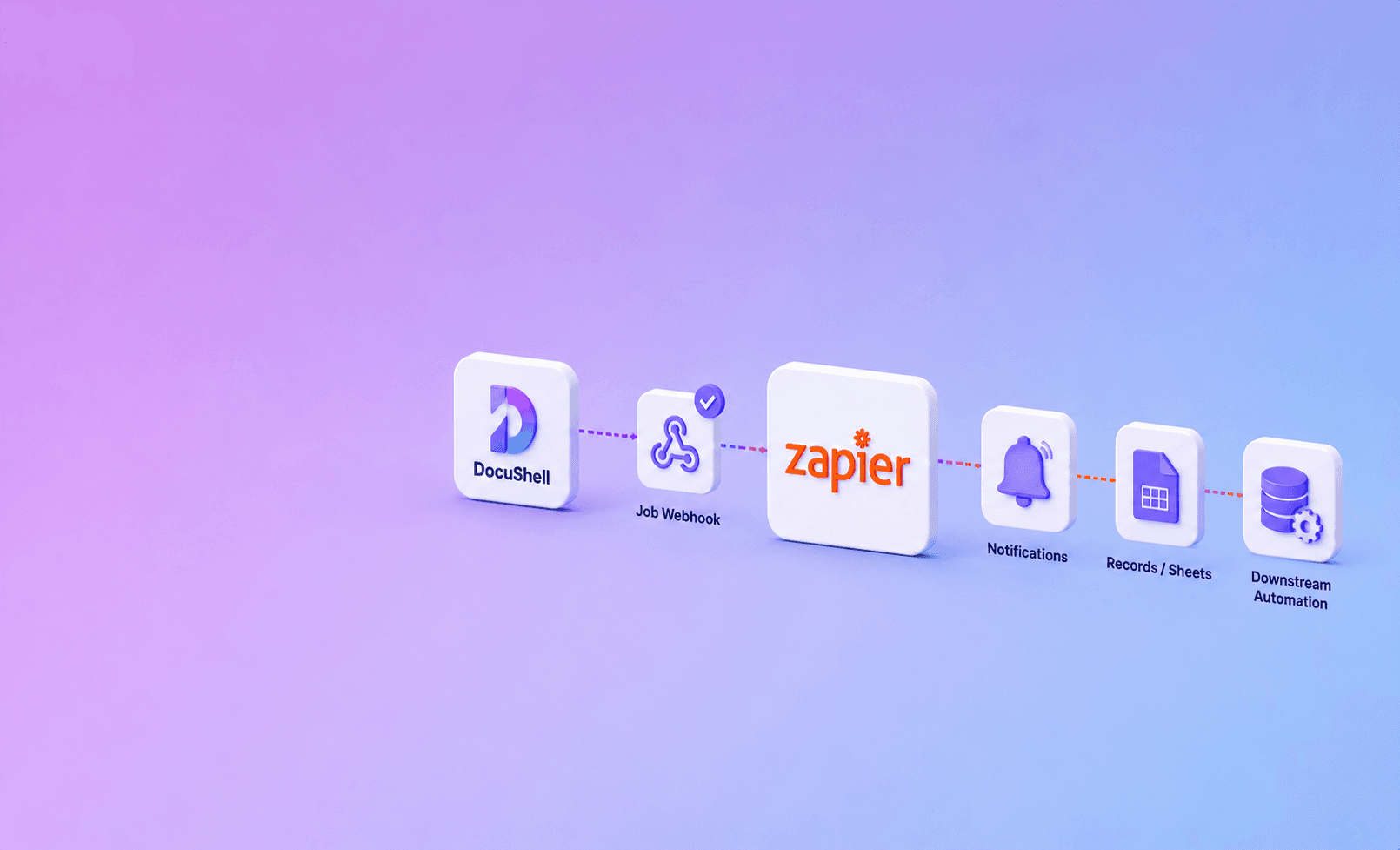
Connect DocuShell to Zapier with a Catch Hook trigger. Give the hook URL to the DocuShell job, receive the completion event, then use the job ID to fetch or route the result through an authenticated step.
This is a webhook-compatible integration, not a claim that every DocuShell action is a native Zapier app action.
| Good Zapier fit | Poor Zapier fit |
|---|---|
| Create a review task after completion | Move full confidential PDFs through many steps |
| Notify an operations channel | Verify complex raw-body signatures without a gateway |
| Update a CRM status by job ID | Run long OCR or parsing inside the Zap |
| Call a protected import endpoint | Make final legal or hiring decisions |
| Record minimal job metadata | Use a spreadsheet as permanent sensitive storage |
Create the trigger
In Zapier, start a Zap with Webhooks by Zapier and choose a catch-hook trigger. Copy the generated HTTPS URL.
When creating a supported DocuShell API job, provide that URL and a webhook secret. The DocuShell Integrations page lists Zapier as a webhook-compatible workflow tool.
Filter completion events
Test with a sample event, then add a filter that continues only for the job and event types your Zap expects. A failure event should usually take a different branch from a completed job.
Use the stable job ID as the record key in downstream systems.
The payload below is an illustrative reduced event for a verification gateway to forward to Zapier. It is not a promise of DocuShell's raw webhook schema:
{
  "event_id": "evt_01JZ8Q4",
  "event_type": "document.job.completed",
  "job_id": "job_01JZ8P9",
  "source_id": "contract-intake-481",
  "verified": true,
  "occurred_at": "2026-07-06T10:42:18Z"
}
In Zapier, filter on event_type, look up job_id, and upsert using source_id. Keep the authenticated result fetch in a service that can enforce ownership and retention.
Protect the workflow
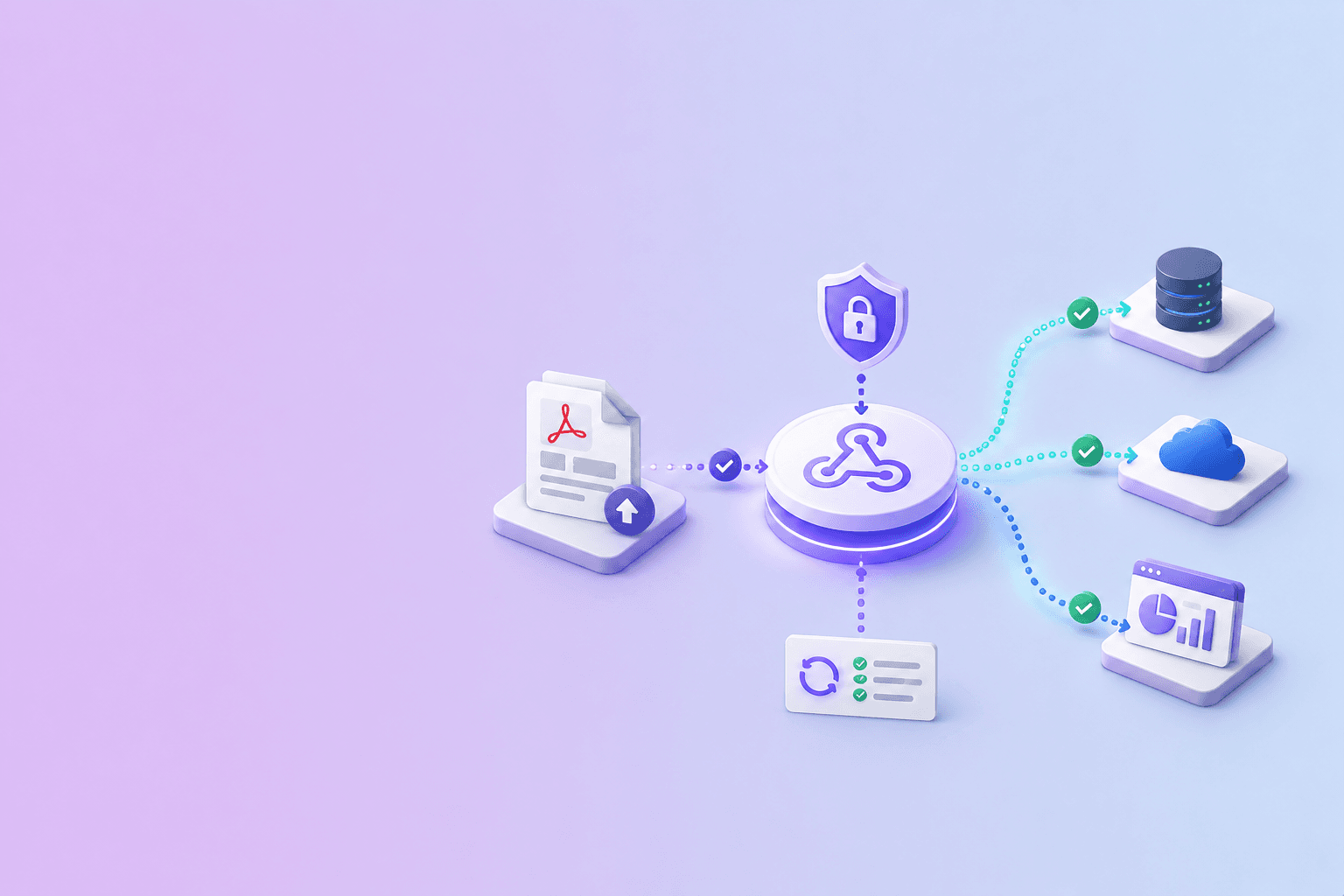
Zapier's catch hook is convenient, but high-trust signature verification may be easier in a small gateway you control. Verify the raw-body signature there and forward a reduced trusted payload to Zapier.
Do not place API keys in public hook URLs or spreadsheet cells.
Avoid duplicate actions
Webhook delivery can be retried. Before creating a CRM row, ticket, or alert, look up the event or job ID. Update an existing record when it is already present.
For important workflows, fetch the current job status before the final side effect.
Choose practical Zap actions
Good first automations include notifying a review channel, creating a task, recording job metadata, or calling an internal endpoint that imports the structured result.
Keep large artifacts behind authenticated downloads. Zapier should move the workflow forward, not become an accidental long-term store for private PDFs.
A practical Zap layout
Use Catch Hook as the trigger, then filter for the expected event type. Look up the job ID in the destination before creating anything. Fetch the current state through an authenticated service you control, transform only the needed fields, and upsert the destination record.
Add a separate path for failed jobs so operations teams receive a useful error without exposing document content.
Recommended trust boundary: verify DocuShell events in a small endpoint you control, then forward a minimal trusted payload to Zapier. This keeps signing secrets, raw bodies, and document access rules out of a no-code hook URL.
Good and poor automation candidates
Good Zapier actions include creating a review task, sending a minimal completion notice, updating a CRM status, or calling an internal import endpoint. Poor candidates include placing an entire confidential PDF in a public sheet, emailing raw API keys, or making hiring or legal decisions from unreviewed extraction.
Test duplicate delivery
Send the same sample event twice. The second run should find the existing job record and stop or update it. Then send a failure event and confirm it does not enter the completed branch.
Document the person who owns the Zap, its connected accounts, and what happens when that person leaves the organization.
Keep the evidence link
When mapping extracted values, include the source job ID and page reference. A reviewer should be able to trace the record back to the protected output without storing the document in every connected app.
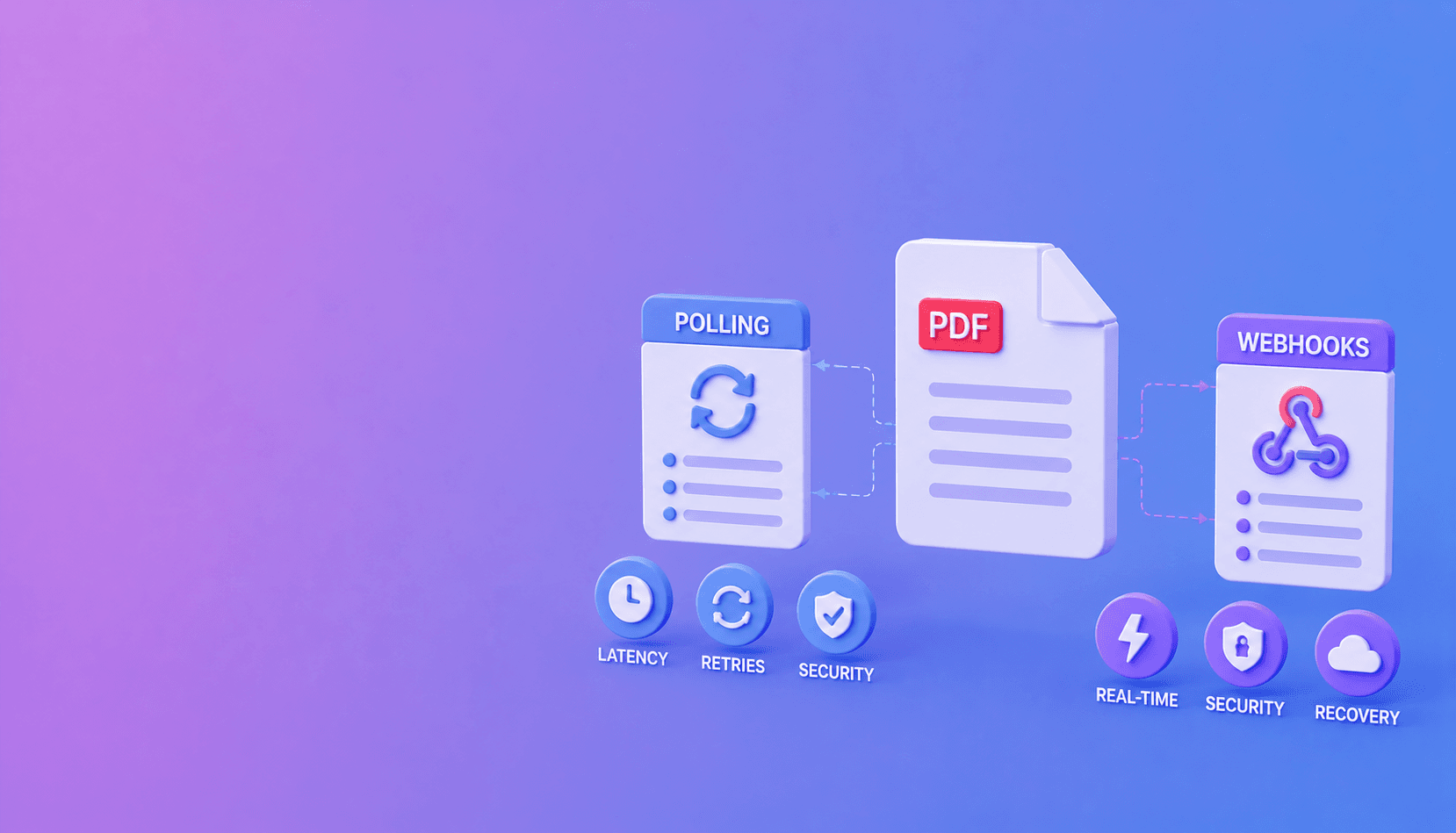
Review polling versus webhooks before choosing the trigger, and use signed webhook verification for high-trust events. Compare the workflow with n8n PDF automation and Make PDF automation if you need more control over routing.
Frequently Asked Questions
Free Tool
PDF to JSON
Turn PDFs into structured, source-aware data for RAG, review, and automation.
Try PDF to JSONDocuShell Team
The DocuShell editorial group writes and maintains guides for everyday PDF workflows, with updates made when tool behavior or documented limits change. See our editorial standards for the process behind each article.
Focus: No-code document automation and webhook integration
Questions or feedback? Get in touch.